![RazorSync_Icon.png]](https://help.razorsync.com/hs-fs/hubfs/RazorSync_Icon.png?height=40&name=RazorSync_Icon.png)
RazorSync makes chemical tracking simple, your techs can log every spray right from the field. no clipboards, no lost paperwork, and no scrambling when it's time for an audit or compliance report. You'll have a complete, exportable record of every chemical used, on every job, at your fingertips. Let's walk through how to set this up so you can stay compliant, impress your customers, and sleep better at night.
The Guide: Set Up Chemical Tracking in Two Easy Steps
Step 1: Build Your Custom Chemical Tracking Service Form
Think of this as your digital spray log—tailored exactly to your business and automatically attached to every job. Here's how to create it:
- Head to Settings in your RazorSync account.
- Click on Service Forms, then hit the Add button (the Plus icon at the top).
- Name your form something clear, like "Chemical Application Log" or "Spray Report."
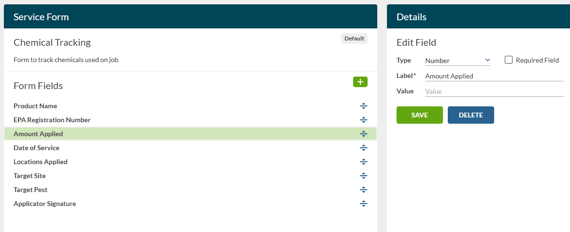
- Add the fields you need to stay compliant and organized. We recommend including:
- Product Name – What did you spray?
- EPA Registration Number – Essential for regulatory tracking
- Amount Applied – Track usage down to the ounce
- Date of Service – Automatically logged with the job
- Locations Applied – Front yard, backyard, perimeter, etc.
- Target Site – Lawn, foundation, garden beds
- Target Pest – Ants, weeds, grubs, mosquitoes, you name it
- Signature Field – Let your tech sign off right on their mobile device
- Pro move: Check the box to set this as a default form, and RazorSync will automatically attach it to every new work order. No more forgetting to grab the log sheet!
Need more help customizing your form? Check out the full how to guide for all the options and field types that are available
https://help.razorsync.com/service-forms
Step 2: Create a Powerful Ad Hoc Report to Track Chemical Usage
Now that your techs are logging chemicals in the field, let's turn that data into actionable insights. Want to know how much of a specific product you used last month? Need a compliance report for your state agency? RazorSync's Ad Hoc Reporting has you covered.
Here's how to build your Chemical Usage Report:
- Go to the Reports section and click Add.
- Select "Service Form Report Type" from the options.
- Choose your newly created form (e.g., "Chemical Tracking") from the Service Form dropdown.
- Select "Work Order and Task" for the Service Form Type—this pulls in all the job details tied to each spray.

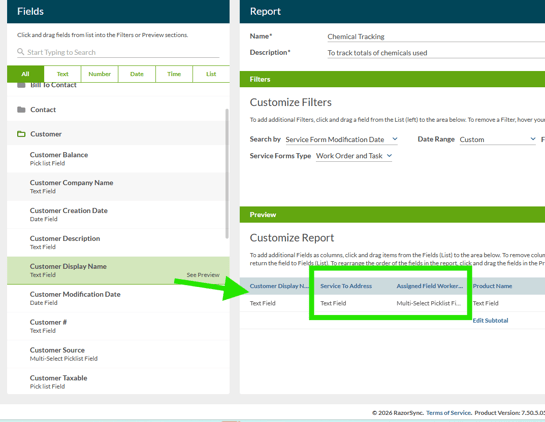
- Add extra context to make your report even more useful. We recommend adding:
- Customer Name – See who got serviced
- Service To Address – Know exactly where the application happened
- Assigned Field Worker – Track which tech did the job
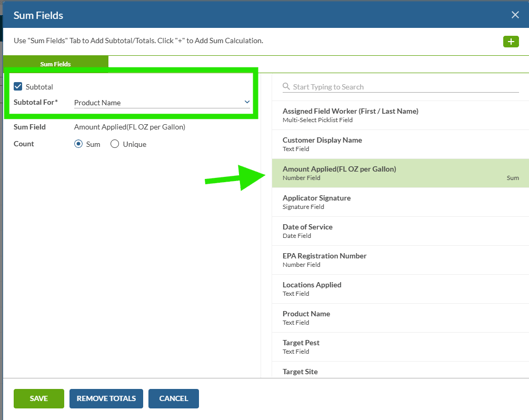
- Here's the magic: Subtotal by Product Name. This lets you see at a glance how much of each chemical you've used over any time period.
- Click the Sum Fields button
- Select "Total" for the Amount Applied field
- Check the Subtotal box and choose Product Name
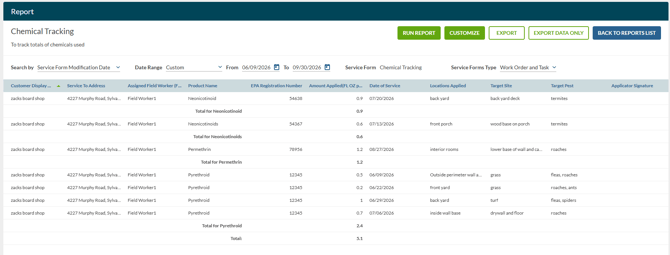
- Save your report and run it anytime you need. You can filter by date range, customer, tech, or product—and export it as an Excel file for your records, audits, or compliance filings.
Want to unlock even more reporting power? Dive into the full Ad Hoc Report Guide
https://help.razorsync.com/ad-hoc-reports
Pro-Tip: Turn Data Into Dollars
Did you know? Tracking chemical usage doesn't just keep you compliant—it helps you control costs and boost profitability. Run your report monthly to spot trends: Are you using more product than expected on certain properties? Is one tech consistently more efficient than others? Use these insights to adjust pricing, train your team, and reduce waste.
Bonus: When a customer asks, "What did you spray last time?"—you'll have the answer in seconds. That's the kind of professionalism that earns referrals and repeat business.