![RazorSync_Icon.png]](https://help.razorsync.com/hs-fs/hubfs/RazorSync_Icon.png?height=40&name=RazorSync_Icon.png)
This report will be similar to the Invoice based report we created in this Ad Hoc Report guide except we will be adding the Aging field.
The Aging Field will detail how many days that the invoice has been open or unpaid past the invoice due date.
How To Guide
If you already have existing Invoice based reports, you can add the Aging field to those already created reports.
For this report, we will be creating a Financial based report for Invoices that will include the Invoice number, the Invoice Create Date, the Customer Display Name, the Invoice total, Invoice Balance and most importantly the Aging Field.
Step 1. Click on Add Report then Click on the Financial folder and select Invoice Report type. Then Click on Add.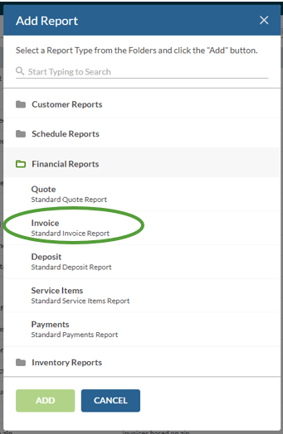
Step 2. This will take us into the Report Customization View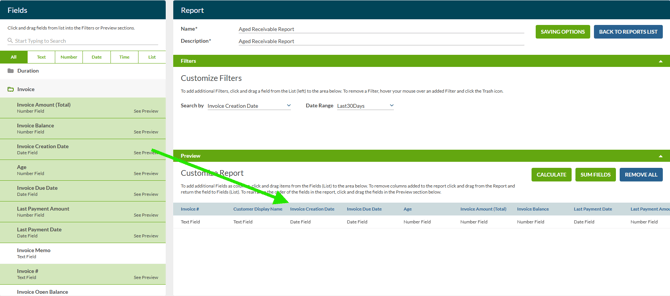 Step 3. Add the appropriate fields from the left side column to the bottom results column section to create the report. We are adding the fields of Customer Display Name, Invoice Number, Invoice Create Date, Invoice Due Date, Invoice Total, and Invoice Balance, and the Aging Field. Lastly, if a invoice requires more than 1 payment, we are also including the Last Payment Date and Last Payment Amount.
Step 4. We have also set the Search by to search for Invoice created in the Last 30 days. But you could set that to Custom and then set a specific Date Range. For example, if you set the date range for the last fiscal year, you could load up all the aging invoices for that year
Step 5. Add your Report Title and Description. Then Click on Save.
Then this report will be available to run in the future under Ad Hoc Reports.
Running a Report
Once a report is created, it will be available in your Ad Hoc Reports. Click on the name of the report to load it up. Select your Date Range. Click on Run to load the report results. Then if you would like to export the results as a Excel file to do more with it. Click on Export Data Only. 
For more reporting tips, Check out Ad Hoc Reporting