![RazorSync_Icon.png]](https://help.razorsync.com/hs-fs/hubfs/RazorSync_Icon.png?height=40&name=RazorSync_Icon.png)
Steps to Create a Quote:
- Navigate to the Customer tab on the left side (the icon that looks like a person).
- Click on the customer you want to create a quote for.
- At the top of the customer profile, click on the Quotes tab.
- Click the green Add New button.
- Enter a title for your quote in the Summary field.
- Leave the Quote Number/ID field blank (this will auto-generate).
- Select the Address where the job will be performed.
- (Optional) Select a Salesperson if you track quotes by sales leads, or leave as "Not Set."
- Enter a Start Date and End Date for the quote (even if you're unsure of the exact dates).
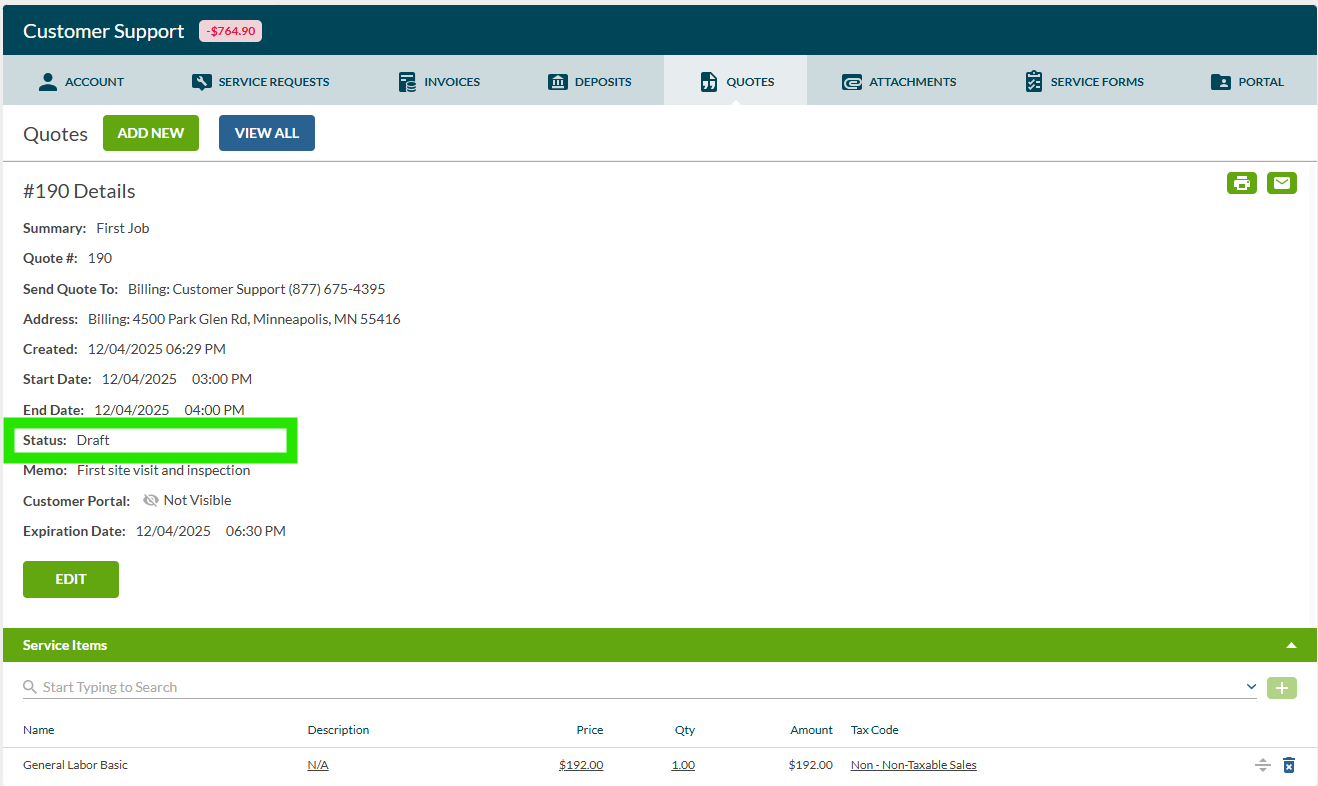
- Leave the Status as "Draft."
- (Optional) Add any additional details in the Memo field for your customer.
- (Optional) Set the quote as Visible if you want the customer to view it in the customer portal.
- Click Add to create the quote.
Steps to Add Service Items to the Quote:
- In the Service Items section, click in the box that says "start typing to search."
- Select the items you want to add to your quote.
- Click on the Price, Quantity, or Description fields to edit them, then click the green checkmark to save.
- If the item is taxable, check the Taxable checkbox and select the appropriate tax rate.
- (Optional) In the Attachments section, drag and drop files or click to upload images or documents related to the quote.
Steps to Convert an Accepted Quote into a Work Order:
- When the customer accepts the quote, click Edit while viewing the quote details.
- Change the Status from "Draft" to Accepted.
- Click Save.
- A new Convert button will appear next to the Edit button—click Convert.
- Schedule the new work order to a technician and adjust the start/end dates if the scheduled date differs from the original quote.
⚠️ Important: Do Not Leave Start/End Dates Blank
Always enter a start date and end date when creating your quote, even if you don't know the exact dates yet. If these fields are left blank, the quote will not convert correctly into a work order later. You can always update the dates after converting to a work order.