![RazorSync_Icon.png]](https://help.razorsync.com/hs-fs/hubfs/RazorSync_Icon.png?height=40&name=RazorSync_Icon.png)
Steps to Enable Location Tracking (For Field Technicians)
Important: Location tracking cannot be enabled remotely. Each technician must enable this setting on their own mobile device.
On the Mobile Device:
- Open the Razor Sync mobile app.
- Tap the 3 bars on the bottom right of the screen.
- Navigate to Location Settings (not Synchronization Settings).
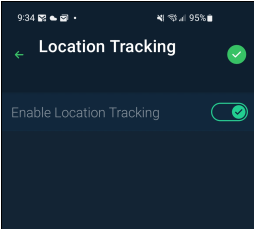
- Toggle on Enable Location Tracking.
- When prompted for device permissions, select "Allow access all the time" to ensure reliable syncing.
📱 Platform-Specific Behavior:
- iOS devices: Location data syncs immediately once the tech signs into the app and enables location tracking.
- Android devices: Location data only syncs after the tech clocks in. Make sure Android users clock in at the start of their shift, or location data will not be shared.
- Location data will automatically sync every 5 minutes once enabled.
Steps to View Field Worker Locations (For Managers/Dispatchers)
On the Browser Version:
- Log into Razor Sync on your desktop browser.
- Navigate to the Field Worker Map page (icon looks like a flag with a person).
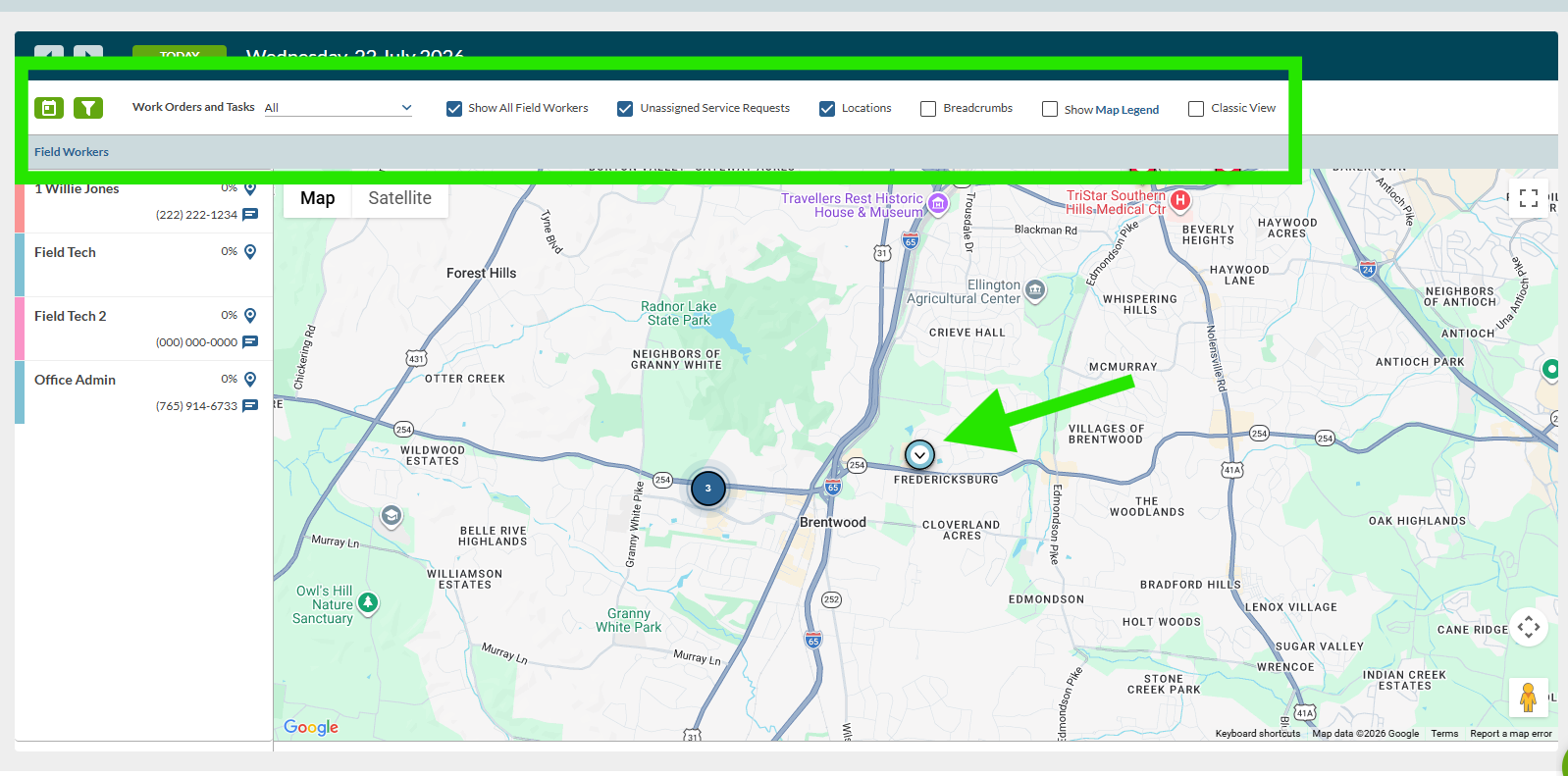
- Click on a technician's name to view their current location on the map.
- Hover over the pin icon to see the last time their location data synced.
- Click on the location pin to view breadcrumbs (all location tracking points for that day).
Optional Map Features:
- Use the date picker (top left) to view location history from previous days.
- Enable Breadcrumbs (top menu) to see the path the tech took throughout the day.
- Filter by specific workers or toggle between assigned/unassigned work orders.
- Switch to Classic View if you prefer the legacy map interface.
⚠️ Important Callout / Things to Avoid:
- Do not confuse "Location Settings" with "Synchronization Settings." Location tracking must be enabled specifically in the Location Settings menu.
- Do not select "Allow only while using the app" for permissions. You must choose "Allow access all the time" for the app to reliably sync location data in the background.
- Android users: Remember that location tracking will not begin until the tech clocks in. If they forget to clock in, you will not see their location.
- iOS and Android have different device permission structures. The in-app setting is the same, but the device-level permissions may look different depending on the operating system.
Pro Tip: Some customers use breadcrumb location data as proof of service to verify that a technician visited a customer site. You can access historical breadcrumbs by selecting a previous date on the Field Worker Map page.