![RazorSync_Icon.png]](https://help.razorsync.com/hs-fs/hubfs/RazorSync_Icon.png?height=40&name=RazorSync_Icon.png)
Large, high-resolution photos can quickly increase the size of a work order report.
Resizing photos can help:
- Reduce the overall size of the email attachment
- Allow more photos to be included in the report
- Improve email delivery success
Tip: Try to find the right balance between image quality and file size. The photo should remain clear enough for your customer to see the important details.
Step 1: Download the Photo from RazorSync
- Open the work order and locate the photo you want to resize.
- Download the photo to your computer.
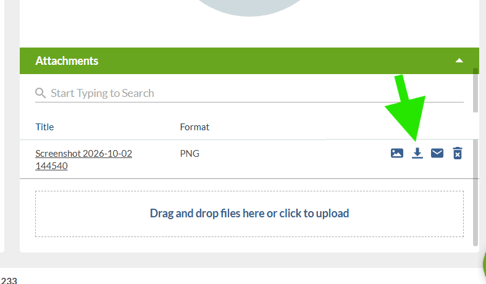
Step 2: Open the Photo in Using the Photos App on your Computer
- Locate the downloaded photo on your computer.
- Right-click the image.
- Select Open with > Photos.
Step 3: Resize the Photo
- With the image open in the Photos app, click the Info icon.
- Select Resize image (or Resize, depending on your Windows version).
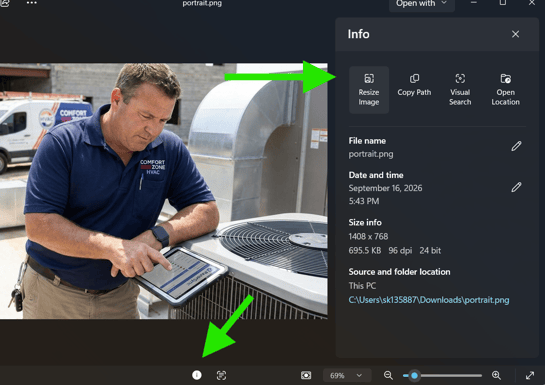
- Choose a smaller image size.
- Adjust the settings until the estimated file size is approximately 2 MB.
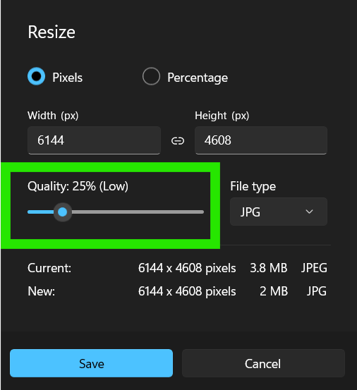
Note: If you plan to include many photos in the work order report, you may need to reduce the file size further
Step 4: Save the Resized Photo
- Save the newly resized image to your computer.
- Use a different filename if desired so you can easily identify the smaller version.
Step 5: Upload the New Photo to RazorSync
- Return to the work order in RazorSync.
- Upload the resized photo.
- Remove the original larger photo from the work order if it is no longer needed.
Step 6: Email the Work Order Report 🎉
The smaller image sizes should help keep the report within the limits of most email providers.
Best Practices
✅ Keep individual photos around 2 MB or less when possible.
✅ Use smaller sizes if attaching many photos.
✅ Verify the resized image still shows the necessary job details.
✅ Replace large images in RazorSync with the resized versions before sending the report.
Troubleshooting
I still can't email the work order report.
- Verify the total email attachment size is below your email provider's limit.
- Reduce the size of additional photos.
- Remove any unnecessary images from the work order.
- Regenerate the report and try sending it again.
By resizing photos before generating your report, you can include the images your customer needs while avoiding common email attachment size limitations.