![RazorSync_Icon.png]](https://help.razorsync.com/hs-fs/hubfs/RazorSync_Icon.png?height=40&name=RazorSync_Icon.png)
Required Fields to Login
Razorsync has 3 required fields to login. This applies to both the Browser and Mobile app version
- Username
- Password
- Server Name
Main Login Page
https://razorsync.0.razorsync.com/Portal/CommonLogOn
If you login and there is a blank page or spinning wheel, refer to our article about how to clear your browser's cache and cookies Clear Cache and Cookie
Issues with your password? Here is how to Reset it
There are way too many passwords nowadays, luckily Razorsync makes it very easy to reset! 😊
-
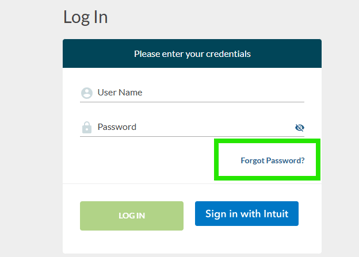
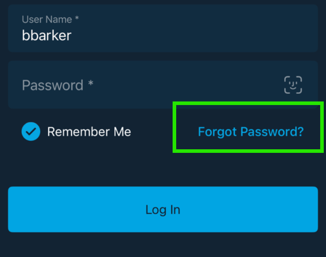
On the login screen, Click on Forgot Password. This option is located on both the Browser version and the Mobile App version.
-
A password reset email will be sent to the email associated with your username.
-
Set your new password and log in!
***If you do not receive a forgot password email, contact your office manager to verify and update your email address
Option 2, Contact your Office Admin
The Admin role in your Razorsync account can reset the password for user roles and admin roles. If you are a tech in the field and having issues with your password, give the office a quick call to reset it for you.
Update your Tech's Password as a Office Admin
- Click on the Users option within the Settings
- Click on the Username
- Select Change Password
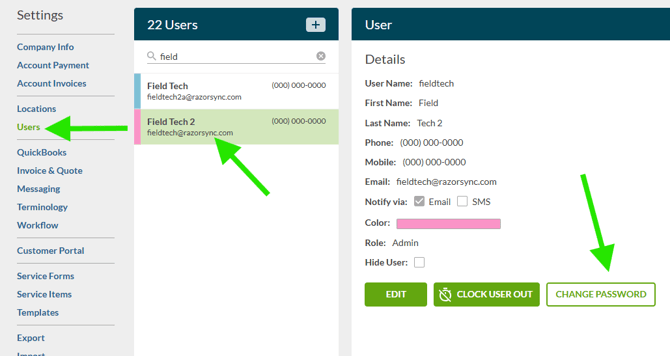
Changing the Password for a USER:
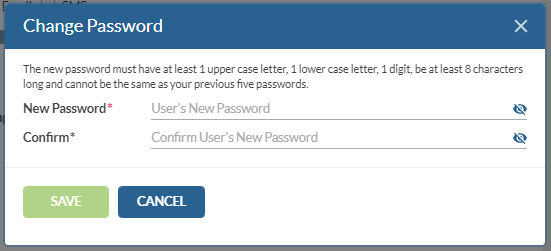
When changing a password for a USER (field worker/tech), you will not be asked to enter your own password first.
Changing the Password for another Admin role:
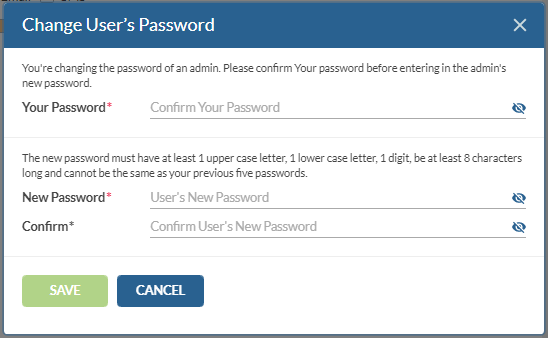
When changing the password for another ADMIN, you must first enter your own password prior to setting the other ADMIN's password.
If you are not able to receive a password reset, once logged into Razorsync, please update your email for your user account. This will make it easier to reset your password in the future
Update your Tech's Email Address as Office Admin
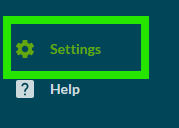
- Click on Settings on the bottom left hand corner
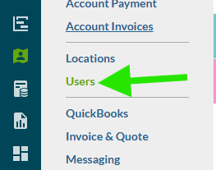
- Select Users
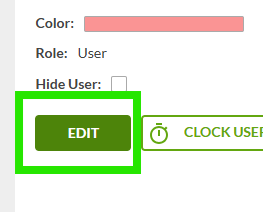
- Select your User and Click on Edit
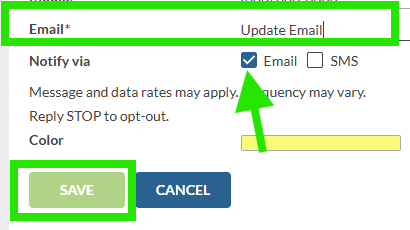
- Update the email address to a valid email
- Make sure Notify via Email is Checked and Save
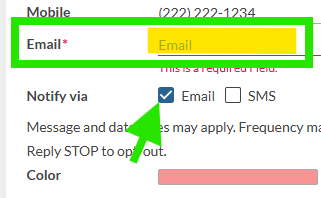
***If Notify Via Email is not checked your user will not receive alerts that their password is going to expire
Update Your Own Email Address as User
-
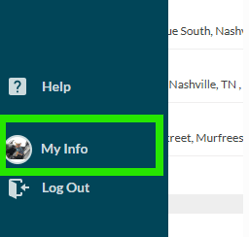
Click on My Info located on the bottom left Menu Option
-
Click on Edit
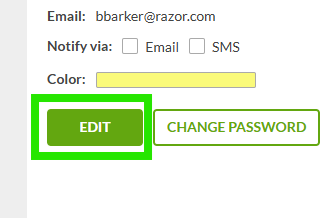
- Enter a verified email under the Email field
- Check Notify Via Email
- Save
***If Notify Via Email is not checked you will not receive alerts that your password is going to expire